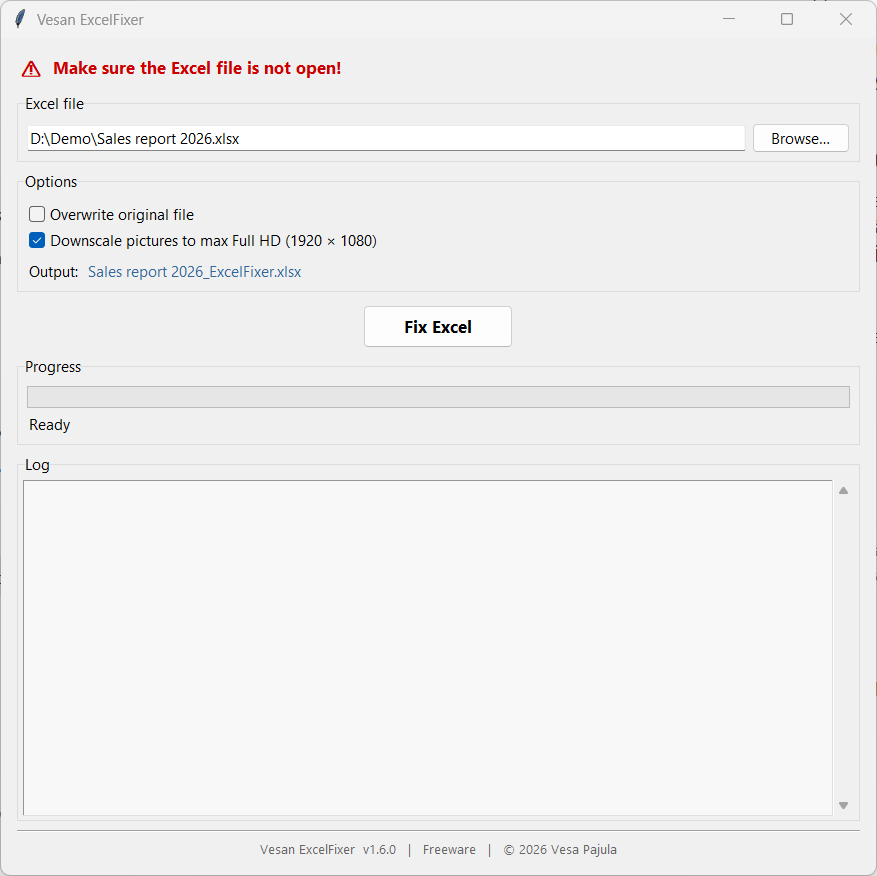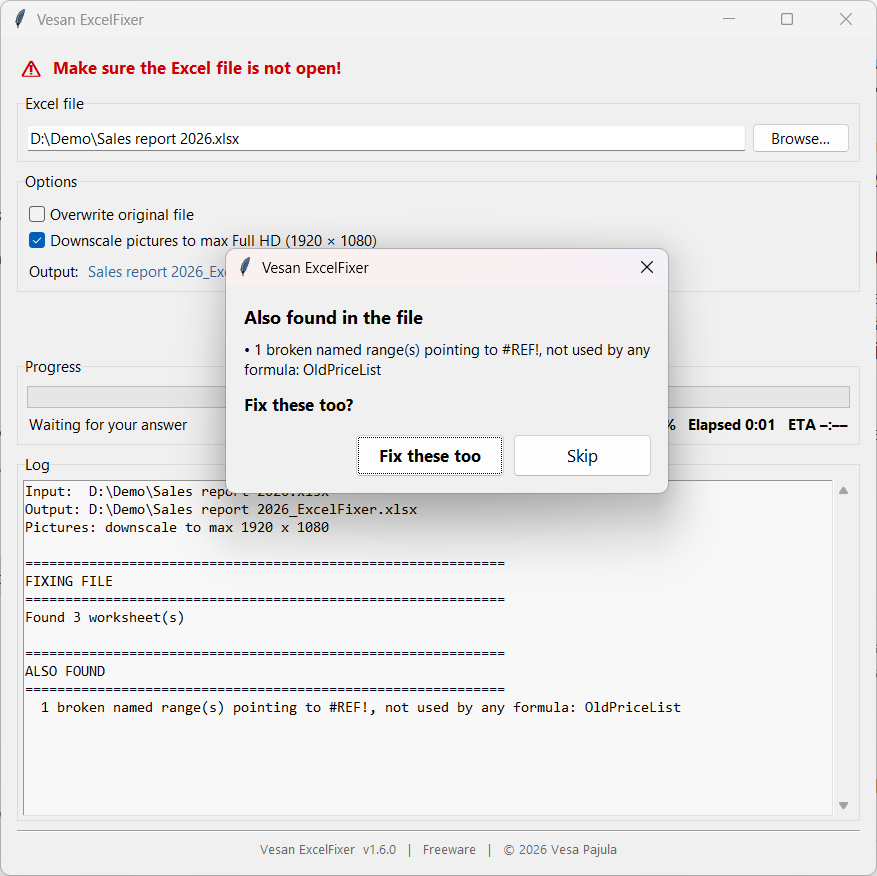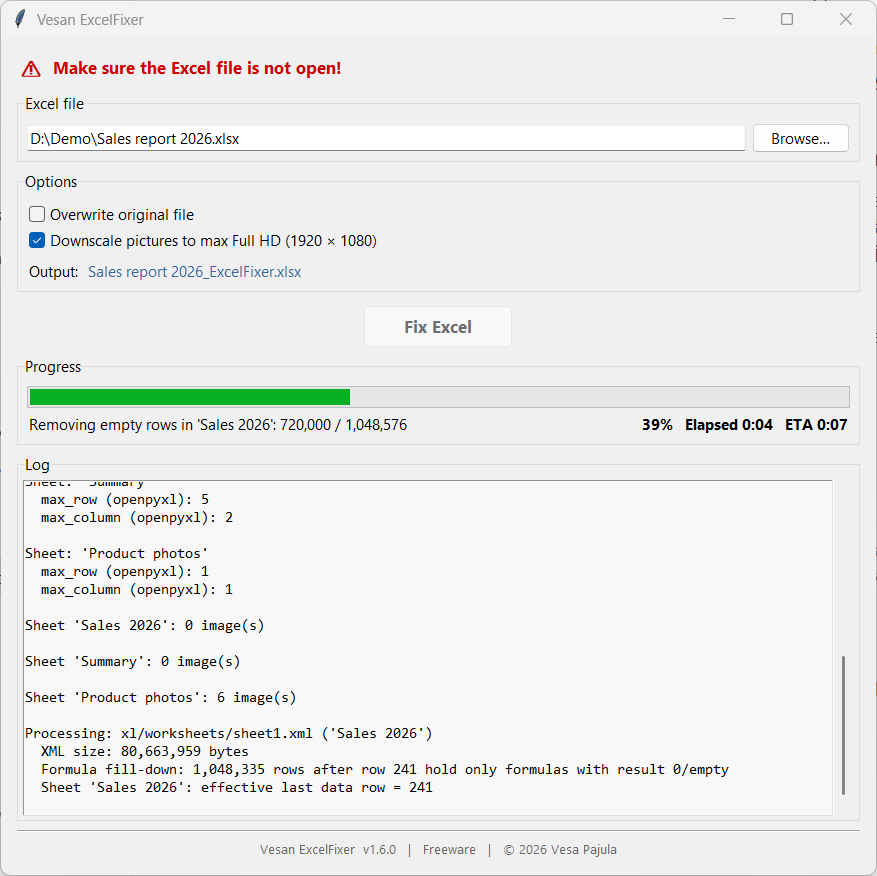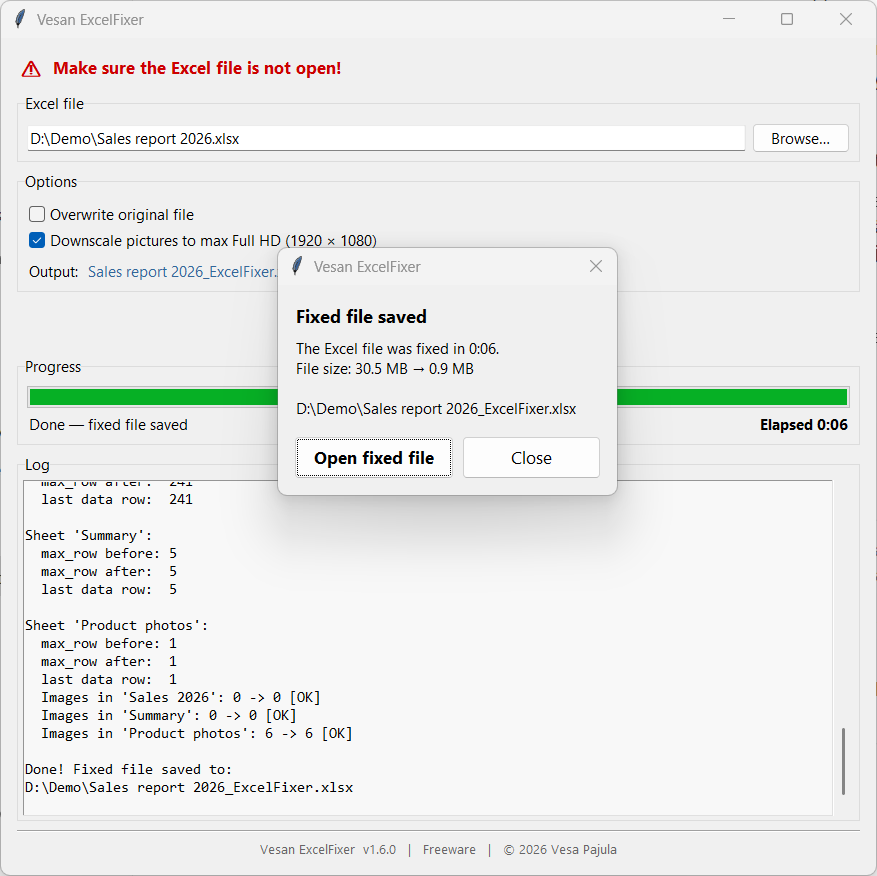
For Excel files that have become slow — or stopped working altogether.
A few pages of data, yet the file weighs tens of megabytes, takes ages to open and freezes when you scroll or save. The cause is usually hidden content that Excel itself cannot clean up. Vesan ExcelFixer finds it and removes it, and leaves your data alone. It can't promise to rescue every file, but when hidden bloat is what slowed yours down, it comes back to full speed.

You see a couple of hundred rows. Excel sees what has piled up out of sight over the years: formatting or a formula copied all the way down to row 1,048,576, so Excel believes a million rows are in use. Thousands of invisible objects that came along when something was copied from a web page. Photos straight from a phone, each one larger than any screen.
None of it shows, and Excel won't remove it for you. It still has to load, track and save all of it, every time. That is why the file crawls — and why, at worst, Excel hangs or will not open it at all.
What you see, and what Excel has to carry.
Everything happens on your computer. The program does not need Excel, an account or an internet connection.
When formatting has been applied to whole columns or dragged far to the right, Excel treats a million rows, or thousands of cells per row, as used. That empty formatted area is removed, and the formatting of your data stays.
A formula filled down to the last row of the sheet, giving 0 or nothing on every row after your data, is removed with those rows. The formulas in your data are not touched.
Pasting from web pages can leave thousands of empty, invisible objects in a sheet. Nobody can see them, but Excel has to handle each one. They are removed.
A picture pasted again and again is stored once, and pictures nothing uses any more are removed. Pictures, shapes and check boxes stacked exactly on top of an identical copy are found too.
Sheets copied between workbooks bring their styles along, until Excel says “Too many different cell formats”. Unused formats are removed and identical ones merged, as Excel does when it saves. Your cells look the same.
Copying and inserting rows splits a conditional formatting rule into hundreds of copies that make scrolling sluggish. They are merged back into one rule, only when the result looks exactly the same.
Excel keeps asking to update links, even after Break Link? Links to other workbooks that nothing uses are removed. For the links still in use, you are told where they are.
“We found a problem with some content” often comes from a small error, such as a forbidden character or overlapping merged cells. These are fixed. A damaged file is rebuilt from what can still be read, and you are told what could not.
Tick one box and pictures larger than Full HD are scaled down with high quality. They look the same in Excel, but the file gets much smaller.
If it finds other leftovers, such as names that point to deleted data, it tells you what they are and asks before fixing them. Broken formulas are only reported, because a person has to decide what they should refer to.
Sometimes the slowness is in the formulas: thousands that refer to whole columns or recalculate after every change. The program tells you so, and where large pivot copies are. Your formulas are never changed.
The fixed file is saved as a new copy next to the original (name_ExcelFixer.xlsx), unless you choose to overwrite. Macros in .xlsm workbooks stay exactly as they are. A progress bar shows the time used and the time left.
Click any screenshot to see it full size.
When an Excel file is far larger and slower than its contents explain, hidden content is the usual reason. That is the case Vesan ExcelFixer is built for, and there the file comes back to full speed. It also repairs many files Excel refuses to open.
A file can also be slow because of heavy calculations or simply a lot of real data. If nothing hidden is found, the program says the file looks clean, saves nothing and tells you if its formulas may be the reason. A badly damaged file cannot always be rebuilt in full.
The program is free and provided as is, without warranty. It leaves your original alone by default, but always keep a backup of important files and check the result before you rely on it.
Download VesanExcelFixer_Setup_1.6.0.exe and run it. No administrator rights are needed. The installer and the program are code-signed by Vukon Oy.
Then right-click the .xlsx or .xlsm file in File Explorer and choose Fix with ExcelFixer (on Windows 11 under Show more options), or start Vesan ExcelFixer and choose Browse….
When it is done, choose Open fixed file. The fixed copy is saved next to the original as name_ExcelFixer.xlsx.
Most often because of content you cannot see: formatting or a formula copied down to the last row of the sheet (row 1,048,576), invisible objects pasted from web pages, full-size photos, or thousands of cell formats and formatting rules piled up by copying sheets and rows. Excel has to load and save all of it every time, even though only a small part of the sheet holds data.
No, and no tool can promise that. Vesan ExcelFixer removes hidden bloat. If your file is slow because of it, which is common, the file comes back to full speed. If the slowness comes from heavy formulas or a lot of real data, there is nothing hidden to remove: the program tells you the file looks clean, and points out formulas that may be slowing it down.
Yes. Formulas in your data are not changed. Only formulas filled down far past your data, giving 0 or nothing, are removed. Cell values, formulas, comments, charts, pictures, macros, print settings and the formatting of the cells that hold data all stay as they are.
Often, yes. When Excel says “We found a problem with some content” or refuses the file, the cause is often a small error the program can fix. A damaged file, for example one cut off by an interrupted download or copy, is rebuilt from the parts that can still be read, and the program tells you what could not be read.
The link is often somewhere Break Link does not reach: in a named range, a conditional formatting rule, data validation, or nowhere at all. Links that nothing uses are removed. For the links still in use, the program tells you where they are, so you can change them in Excel.
Yes, when the formats come from sheets copied between workbooks, which is the usual reason. Unused cell formats are removed and identical ones merged, and unused styles such as “Normal 2 2” are removed if you say yes. The formatting you see stays the same.
No. Vesan ExcelFixer works entirely on your computer. It does not send your files or any other data anywhere and does not need an internet connection. It does not need Excel either.
What remains is usually pictures. Run the fix again with Downscale pictures to max Full HD ticked: pictures larger than 1920 × 1080 are scaled down so they still look the same in Excel. If the program reports that pivot tables keep a copy of their source data, clearing Save source data with file in PivotTable Options makes the file smaller too.
Yes. Vesan ExcelFixer is freeware by Vesa Pajula, free for private and commercial use. You may also give the unmodified installer to others. Windows shows Vukon Oy as the publisher, because the program is signed with the code-signing certificate of the author's company.
Excel workbooks in .xlsx format and macro-enabled workbooks in .xlsm format, on Windows 10 and 11 (64-bit). Macros are kept exactly as they are. Older .xls and binary .xlsb files have to be saved as .xlsx or .xlsm in Excel first. Close the file in Excel before fixing it.
Macro workbooks (.xlsm), too many cell formats, formatting rules split into copies, links nothing uses, stacked copies, and files Excel cannot open or that are damaged. It also fixes a fault in 1.5.0: on a sheet with check boxes, data bars or similar features, the fixed file could fail to open in Excel. Fixing such a file again with 1.6.0 makes it open.
Download Vesan ExcelFixer for free. No sign-up, no trial period, no ads.