Batch PhotoTools
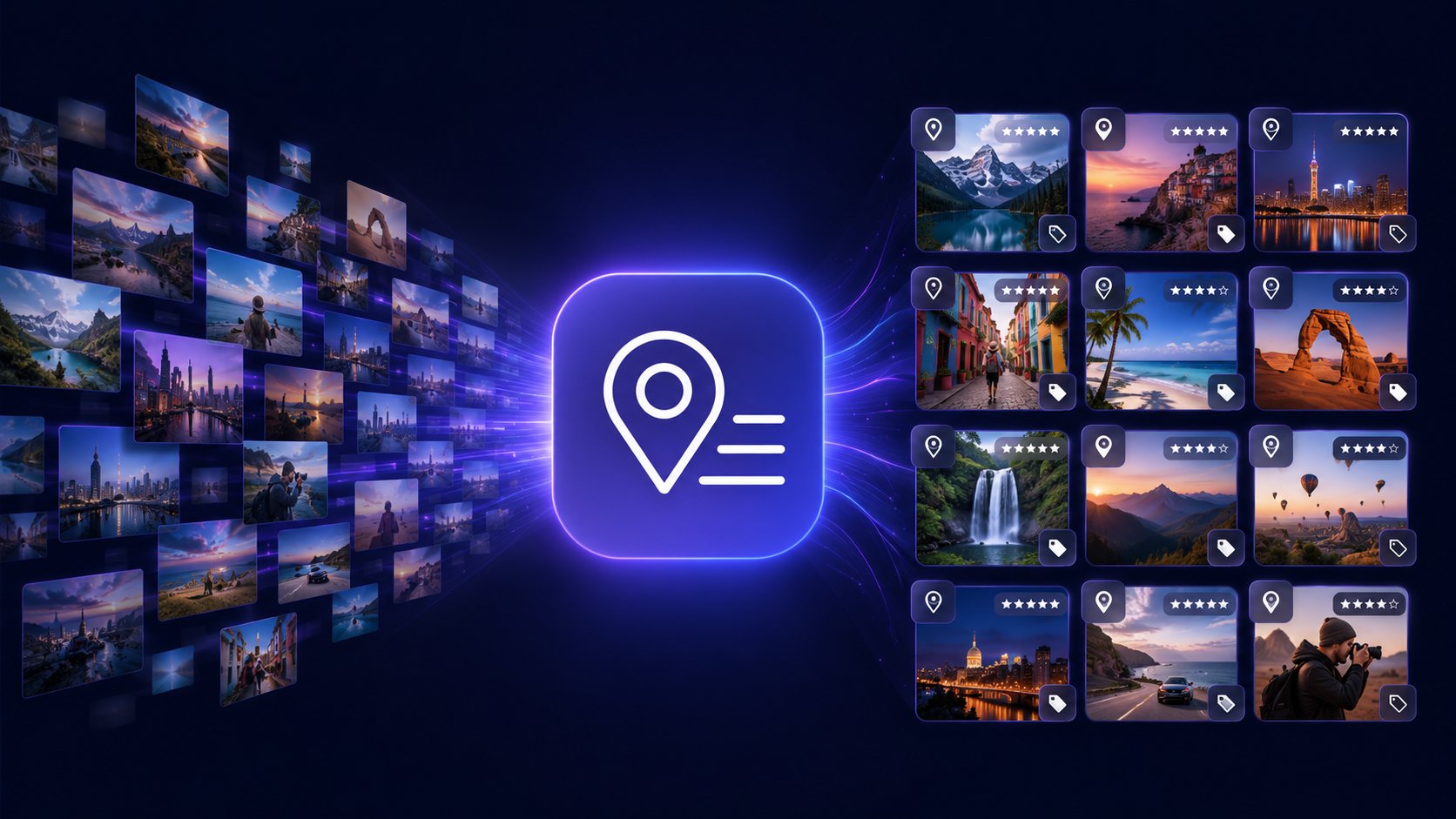
Your camera recorded where every photo was taken, but it wrote it down as numbers. Batch PhotoTools turns those numbers into words — country, city, neighbourhood and the actual place — and writes them into the photos themselves, a whole library at a time.
What this is
A phone or a modern camera stamps every photo with a latitude and a longitude, and then nothing ever does anything with them. Search your library for "Alanya" and you get nothing, because the word "Alanya" was never written down anywhere.
Batch PhotoTools reads those coordinates, looks up what is there, and writes the answer back into each photo.
What the camera stored
What you end up with
Two things about that are worth knowing before you start.
It goes into the photo files, not into a catalogue. The fields used are the IPTC and XMP standards that photo software has agreed on for decades, so Adobe Lightroom, Bridge, Capture One, digiKam, ACDSee, XnView and Windows search all read what this suite writes. Copy a photo to another computer and the place name goes with it. Stop using Batch PhotoTools and you keep everything it did.
It works on the folders you already have. There is no import step and no library to build. You point it at a folder and it works through it.
Before a first big run
Metadata is written straight into your photo files and no backup copies are made. Nothing is deleted, and existing fields are left alone unless you ask otherwise — but keep a backup of your photos anyway, as you would before any program that writes to thousands of files at once.
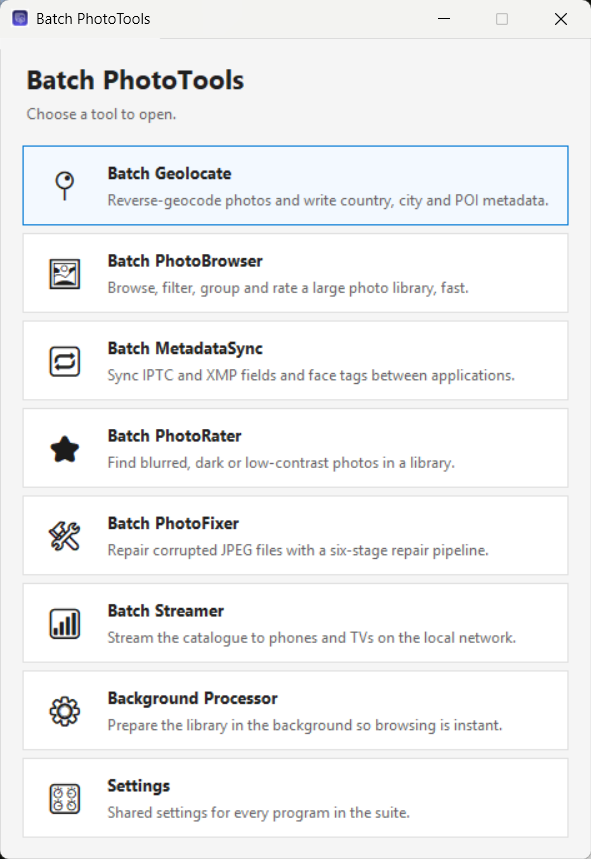
The seven tools
Two you will use constantly, five for particular jobs.

Batch Geolocate
Turns coordinates into place names, finds the landmark or the restaurant, and can ask an AI to describe each photo. This is where the work happens.

Batch PhotoBrowser
Looks at the result. A fast gallery over any folder, with a map, filters, batch editing, private photos and a full-screen viewer.

Batch PhotoRater
Finds the blurred, dark, blown-out and flat photos so you can rate or bin them.

Batch PhotoFixer
Repairs damaged JPEG files — interrupted copies, bit rot, wiped headers.

Batch MetadataSync
Makes different photo programs agree: IPTC against XMP, and face tags across the formats Lightroom, Microsoft and ACDSee each use.

Batch Streamer
Puts your library on the phone, tablet or TV in the room, over your own Wi-Fi. Started from the browser rather than opened on its own.

Background Processor
Gets the library ready while you are away, so browsing is instant.
Settings
One window shared by all of them. File → Settings anywhere opens the same thing.
First run
Four questions, asked once, that decide how good the results will be.
The first time you start Batch Geolocate after installing, a setup window opens. You can skip any of it, change all of it later in File → Settings, and reopen it from File → Initial setup.
Your home country
Place names are written in your own language inside your home country and in English everywhere else. So a Finn gets Helsinki, Suomi at home and Rome, Italy abroad, rather than Rooma.
Offline map data for that country
The setup offers to download it and tells you the size first. This matters more than it sounds — see Offline map data. A country that OpenStreetMap publishes no extract for can still be your home country; there is simply nothing to download.
The language for AI descriptions
Which language the AI writes descriptions and keywords in, if you use it.
An AI provider and key Optional
Most people will not have one yet, and everything except the AI features works without it. The window recommends OpenRouter and links to the page where a key is made, and there is a Test connection button so you can check it before relying on it.
Three passes over your library
Do them in this order. Each is a separate tick box, and each costs a different amount of your time.
Countries and cities, over everything. Point Batch Geolocate at your whole photo folder with Include subfolders on, leave only Tag country, city and subregion ticked, and start. It needs no attention and it is quick: photos taken close together are handled as one place, so a week's holiday is a few dozen lookups rather than a few thousand.
Points of interest, one trip at a time. Tick Tag Point of Interest as well and run it over a single album. This is the pass that asks you questions, so it goes at the speed you answer them — but it is what turns "Alanya" into "Sapadere Kanyonu".
Descriptions and keywords, when you want them. Tick Use AI for keywords and description. This one costs money — roughly a cent per ten photos — and needs an API key.
Then open Batch PhotoBrowser and look at what you have.
Nothing is overwritten unless you ask
By default only empty fields are filled, so running a pass twice cannot damage work you have already done and an interrupted run can simply be started again. The Overwrite existing fields tick box turns that off when you want it off.
Batch Geolocate
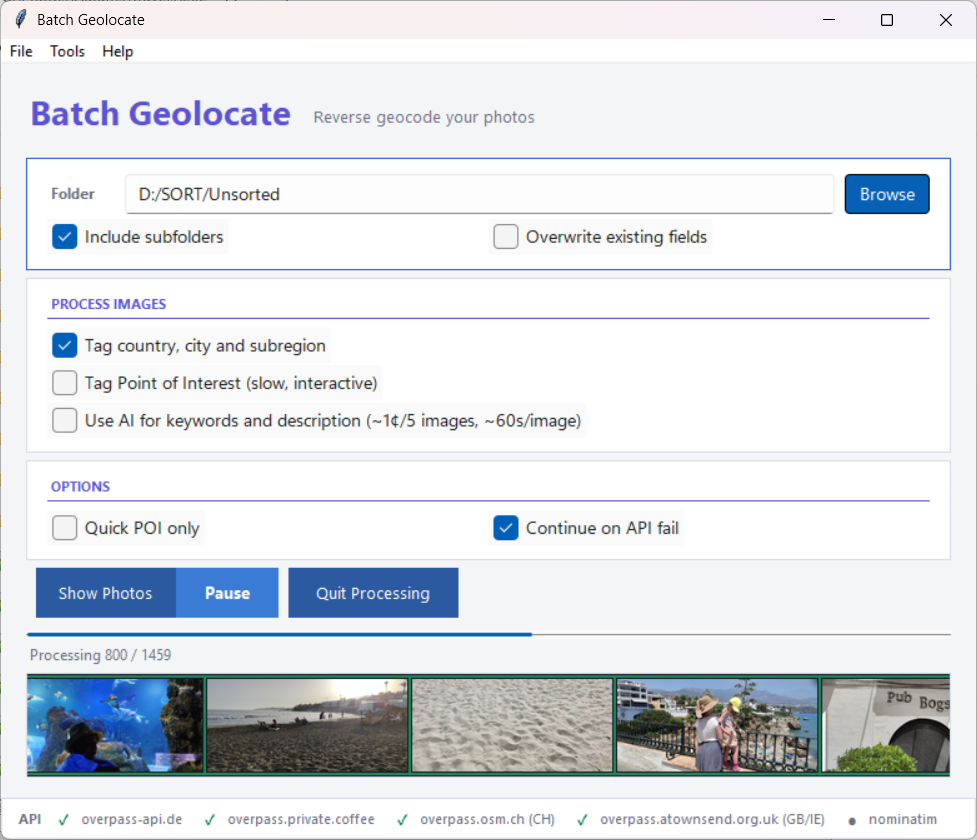
Pick a folder, choose which of the three passes to run, press Start.
The main window
- Folder — what to work on, and whether to include subfolders.
- Process images — the three passes above. The Point of Interest line changes as you set the options, so it always says whether it is about to work interactively or automatically.
- Quick POI only — makes the point-of-interest pass automatic. It uses your own saved places and your offline map data, never asks you anything, and takes an answer only when exactly one place clearly fits. Use it when you want a good result without sitting with the program.
- Continue on API fail — carry on when the public map servers are down or busy, using offline data rather than stopping.
- Show Photos — opens Batch PhotoBrowser on the same folder.
The strip along the bottom shows whether each map server is answering: a green tick is online, a red cross failed, an hourglass means it is waiting. When something takes more than a moment, that strip is replaced by what the program is waiting for and how long it has been waiting — reading details from a large group of photos, a slow map server, finishing the last writes. That is how you tell "working" from "stuck".
Countries and cities
Every photo with coordinates gets four fields: country, state or province, city, and sublocation — the last being a district or neighbourhood where one exists, such as Kallio or Diocletian's Palace.
Photos taken within about thirty metres of each other are treated as one place and looked up once. Every answer is remembered, so a second run over the same city asks nobody anything. When a run finishes it tells you how many answers came from that memory and how many needed a lookup.
Points of interest
A point of interest is the actual place rather than the area around it: the restaurant, the museum, the waterfall, the hotel. It is the field that makes a library searchable in a way a city name never does, because you remember the meal, not the district.
It is also the one thing that cannot be entirely automatic. Coordinates from a phone are accurate to a few metres at best, and in a city centre a few metres covers four restaurants. So Batch Geolocate works through the possibilities in order, and asks you only when the answer is genuinely ambiguous:
- Your own saved places — home, the office, the summer house. Taken without asking.
- Places you marked as having no point of interest — you are not asked about that spot again.
- Places you skipped earlier in this run.
- A place you chose a moment ago nearby — the rest of the meal's photos follow the first one.
- Your offline map data.
- The online map service, if the offline data had nothing.
- You, in the window below.
Choosing a place
When nothing above settles it, a window opens with the candidates on the left and the photo on the right. For a group of photos taken together you can page through them with the arrows or the ← → keys before deciding.
- Pick one and press OK — it is written to every photo in the group.
- Add your own… — type a name instead. Tick Save permanently and every future photo near this spot gets it automatically, without asking. This is the single most useful thing in the program: teach it your home, your regular café and the family cabin, and a large part of your library labels itself.
- Save empty POI — there is nothing here worth naming, and you will not be asked about this spot again.
- Skip — not now. You will be asked again on the next run.
- Update with 250 m — look further out. Each press widens the search again.
- Download region — appears when there is no offline map data near this photo, and fetches the smallest region that covers it.
- The stars under the photo rate that one photo, one to five. Clicking the same star again clears it.
- Queue for AI — adds this group to the analysis list to be described later. Shown only when the AI pass is off, since with it on everything is analysed anyway.
- Pause processing — stops the run while you think, or go away.
Beside the photo counter, a mark says whether this photo already has a description: Analysed, AI-skipped or No description, with the existing text underneath. The line at the bottom of the window reports anything it does over the internet, and says which kind of nothing a fruitless search found — an area with no places in it, or a server that never answered.
Your own places
Tools → Custom POI Manager opens a map of every place you have saved. Drag a marker to move it, right-click one to edit it, right-click empty map to add one. Each place shows how many photos in your library use its name.
Each place has a radius, 25 metres by default — but that is not how far the place reaches. A place saved with a 25 metre radius collects photos taken up to 250 metres away, and the map draws that real catchment as a filled circle. A thinner dashed ring shows the smaller distance within which saving another place counts as the same spot. Where two catchments overlap they are highlighted and the bar at the bottom counts the overlapping pairs, which is worth knowing: a photo in an overlap goes to whichever place is nearer.
Renaming a place offers Search and rename on known photos, which finds every photo already carrying the old name and rewrites it — useful when you notice a typo after tagging four hundred photos with it.
File → Custom Locations is the same set of places as a plain list, which is quicker when you only want to delete a few.
Offline map data
Tools → Offline POI Database downloads OpenStreetMap data for a country or region onto your own disk. It is worth doing before any large run, for three reasons:
- It is instant. Looking up a place on your own disk takes no measurable time. Asking a public server takes seconds, and those servers limit how often anyone may ask.
- The suggestions are better, because the whole neighbourhood is available to rank rather than whatever a single query happened to return.
- It keeps working when the public servers are busy, which they often are.
It does not remove the need for a connection. Country, state and city come from an online map service, and only the point-of-interest search runs against the data on your disk. Places already looked up are remembered, so a second run over the same city asks nobody anything — but a photo from somewhere new needs the internet.
The window lists countries, marking with a ★ the ones you have photographed most and not yet downloaded, shows the size before you commit, and lists what you already have with the date each was fetched. Rather than a whole country it offers the smallest published region that actually contains your photos — Italy / Centro instead of all of Italy. Data more than a year old is noticed at startup and you are offered an update.
You are also offered the right download at the moment it would help: when a run reaches an area with no local coverage, or when the online services are unavailable. Nothing downloads without you agreeing to it.
Descriptions and keywords Optional
With Use AI for keywords and description ticked, each photo is sent to an AI vision model, which writes a one-line description and a handful of keywords and says whether the photo looks poor quality. Photos it calls poor are given one star. It will name a landmark it recognises — and it is told to say when it cannot rather than guess, because a confidently wrong caption is worse than an empty field.
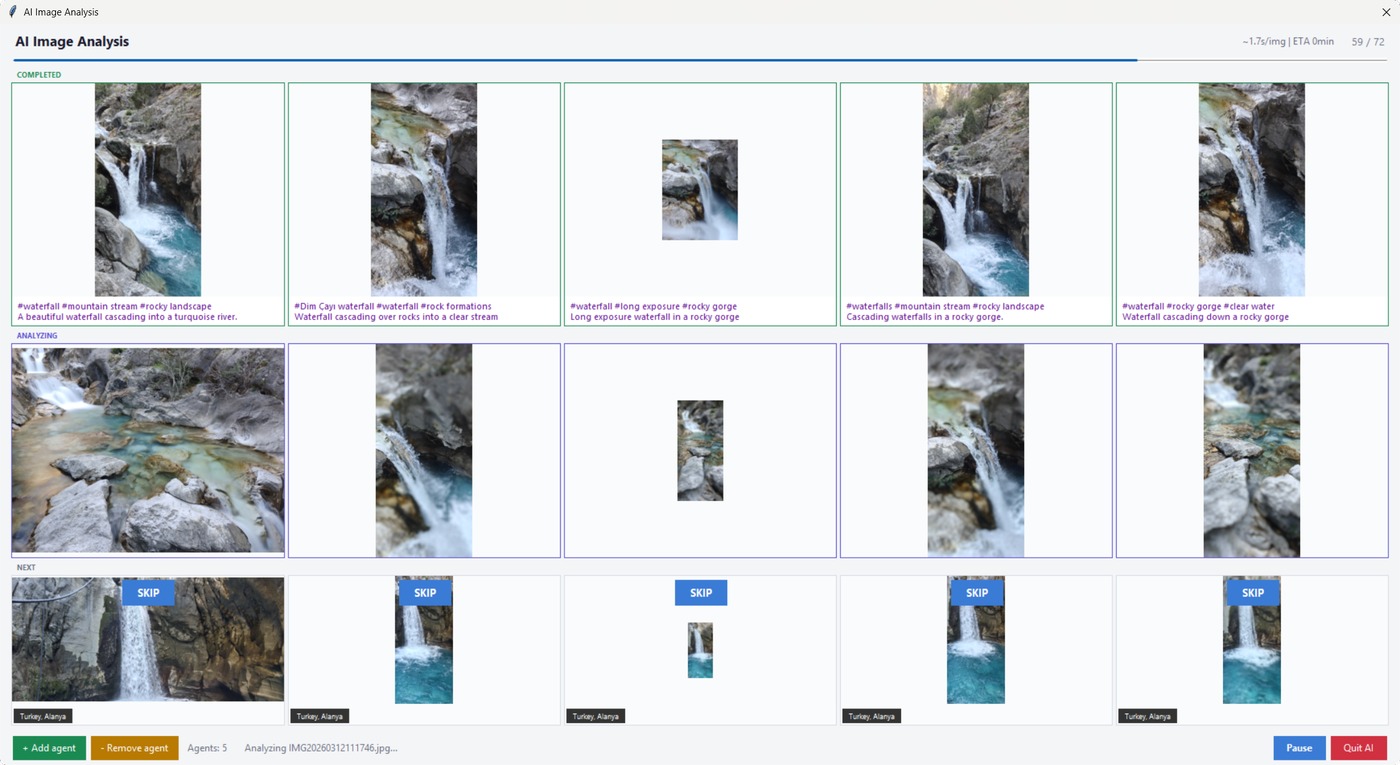
Several photos are analysed at once — three by default, adjustable from one to ten with the + and − buttons while it runs. More is faster until the provider starts refusing; if that happens everything pauses and tells you. The SKIP button on a queued photo drops it, and marks it so later runs skip it too.
Photos that already have a description and keywords are filtered out before the window even opens, so you never pay to analyse the same photo twice.
What it costs
About one cent per ten photos with the default model (Google Gemini 2.5 Flash through OpenRouter), at roughly two seconds a photo. A thousand photos is therefore about a dollar. The program warns you before starting a run of more than a thousand.
Photos with no GPS
Everything above starts from coordinates. Older cameras recorded none, phones with location switched off record none, and scanned prints never had any. AI locate photos without GPS (sorted folders only) works those out instead, from the picture, the folder it sits in, the date it was taken, and where the neighbouring photos were taken.
It runs only inside folders you have marked trusted (see Settings → Library), and that restriction is the point rather than caution: your own folder names are the evidence. A hillside is a hillside anywhere, but the same picture in 2019 Tenerife → el teide is Mount Teide. An album named after the trip with subfolders named after the places gives very good results; a folder called "New folder (3)" gives the AI nothing to work from, and it will say so rather than invent something.
First it asks which countries
A run begins by sampling a few photos from each subfolder plus the first and last of the album — the ones most likely to have been taken at home before and after the trip — and asking one question: which countries are these. The answer opens as a list of the countries it recognised, how many of the sampled photos pointed at each, and a few of those photos so you can see what it was looking at. Add one it missed, remove one that is wrong, press OK. Tick Only these countries to refuse anything else for the rest of the run.
Once you confirm that list, every photo gets at least its country, and those are written straight away. Stop the run there and that much is already done.
Then it proposes places, group by group
The photos are grouped by subfolder and by when they were taken, and each group becomes a row in the Review AI locations window with its photos beside it. Rows appear while later ones are still being worked out, so the first decision is on screen within seconds.
- Approve (or Enter) writes the proposal.
- The suggestion list holds every other answer the AI gave for these photos, with how many photos each came from. Nothing is thrown away, so a place that came second is still there to pick.
- Country + state only takes the broad part of the answer and leaves city and place empty — for when the country is obviously right and the rest is a guess.
- Choose place… lets you answer yourself. It offers your own saved places first, then the places in your offline map data nearest first, and it will take a name you simply type.
- Skip leaves the group alone.
A decision does not have to cover a whole group. Every photo in a row can be ticked and unticked, and the action applies to the ticked ones only. That matters because grouping by folder and time is a good guess rather than a perfect one: three hours at an airport contains the photos really taken there and the ones taken on the way. A row disappears only once every photo in it has been decided, and every acceptance is written immediately, so closing the window half way costs you nothing but the groups you had not reached.
Names are written; coordinates usually are not
Country, region, city and place names are written whenever the answer is good enough. Coordinates are written only when the exact spot is genuinely known — the place matched one of your saved places, or a place in your offline map data, or the AI named a landmark precisely enough to look up by name. The middle of an island or a city is never written as a position, because on a map that would show a fortnight's holiday as a single point in a field. Where coordinates are written, they are marked as estimates.
So most of these photos end up with place names and no position, and do not appear on the map in Batch PhotoBrowser. That is the honest outcome: the place they carry is real, the point on a map would not be. When the AI is not confident enough, nothing at all is written for that group.
Batch PhotoBrowser
Point it at a folder — or at a whole drive — and browse everything in it, in whatever order suits you.
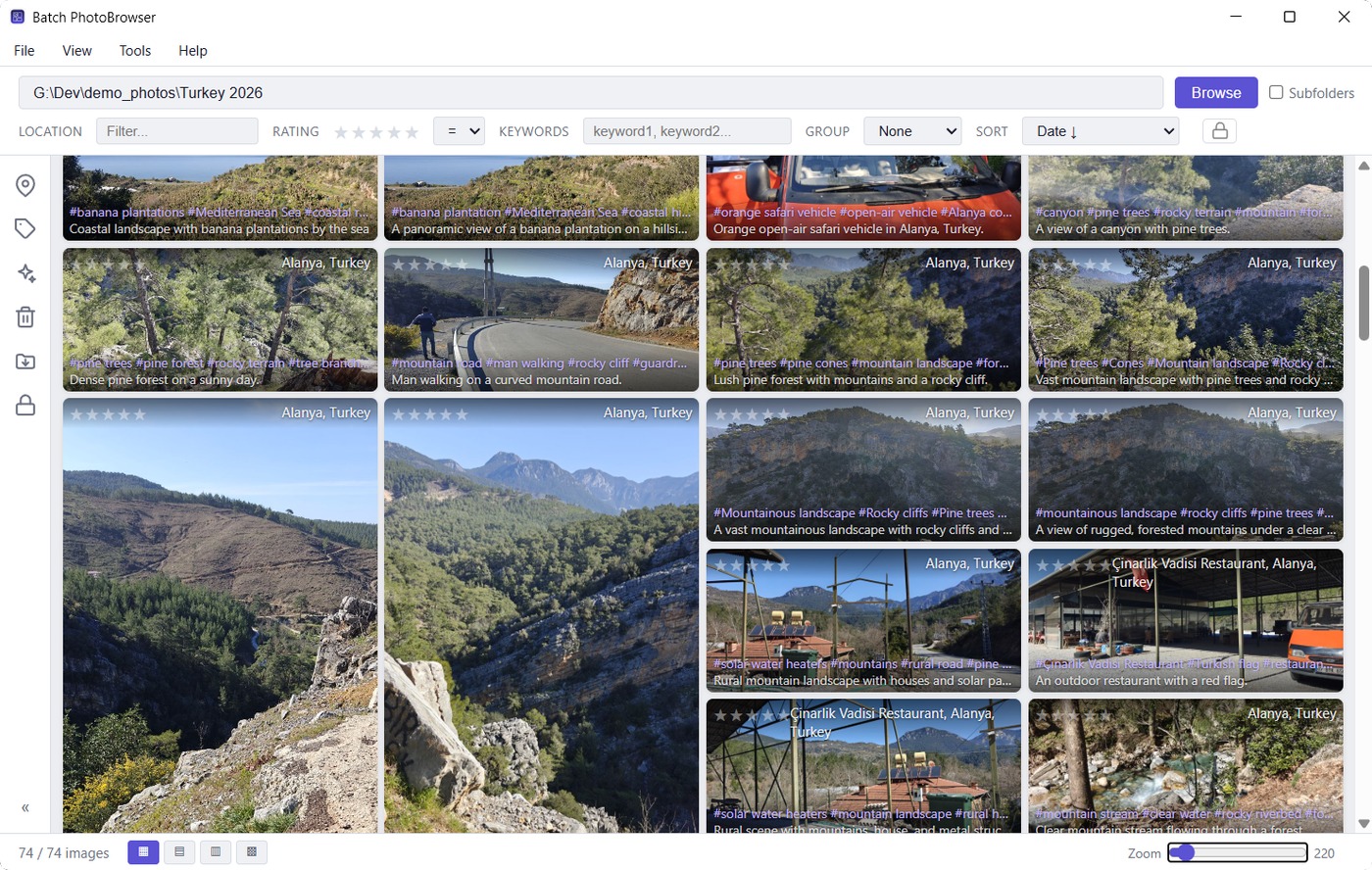
Give it D:\ with Subfolders ticked and it reads straight through
however you filed things — the albums you curated for years, the camera dumps you never
touched, the folder called "New folder (3)" — and gives you one stream of photographs. There
is no import step and no catalogue to build.
What that changes is which questions you can ask. Sorted by date, a drive becomes a timeline regardless of which folder anything sits in. Grouped by country, it becomes your travels. Grouped by keyword, every photo appears under each of its keywords at once. Your filing stops being the thing that decides what you can find, which matters most for the parts of a library that were never really organised at all.
The gallery
- Four layouts — Masonry, Justified, Grid and Metro, from the buttons at the bottom left. Metro fills the window edge to edge with no gaps between photos.
- Thumbnail size — the slider at the bottom right, from 80 to 2000 pixels.
- Filters — location as free text, star rating (either exactly this many or at least this many), and keywords, which must all match.
- Group by year, country, place, folder or keyword. Grouped by keyword, a photo appears under each of its keywords.
- Sort by date, location, folder, rating or name. Both date orders leave out photos that have no date; Show without date lists exactly those.
- Stars on a thumbnail set the rating there and then.
- Right-click for copy path, copy folder, copy file name, show in Explorer, open in your usual photo app, Send to, Move to folder and Move to Recycle Bin. Right-clicking a photo that is part of a selection acts on the whole selection.
The first time a folder is opened its photos are read and thumbnails made; after that it opens instantly. Photos you delete or move stay in place as greyed-out cards so the grid does not reshuffle under you — press F5 when you are ready and it re-reads the folder, tells you what changed, and keeps your place.
The map
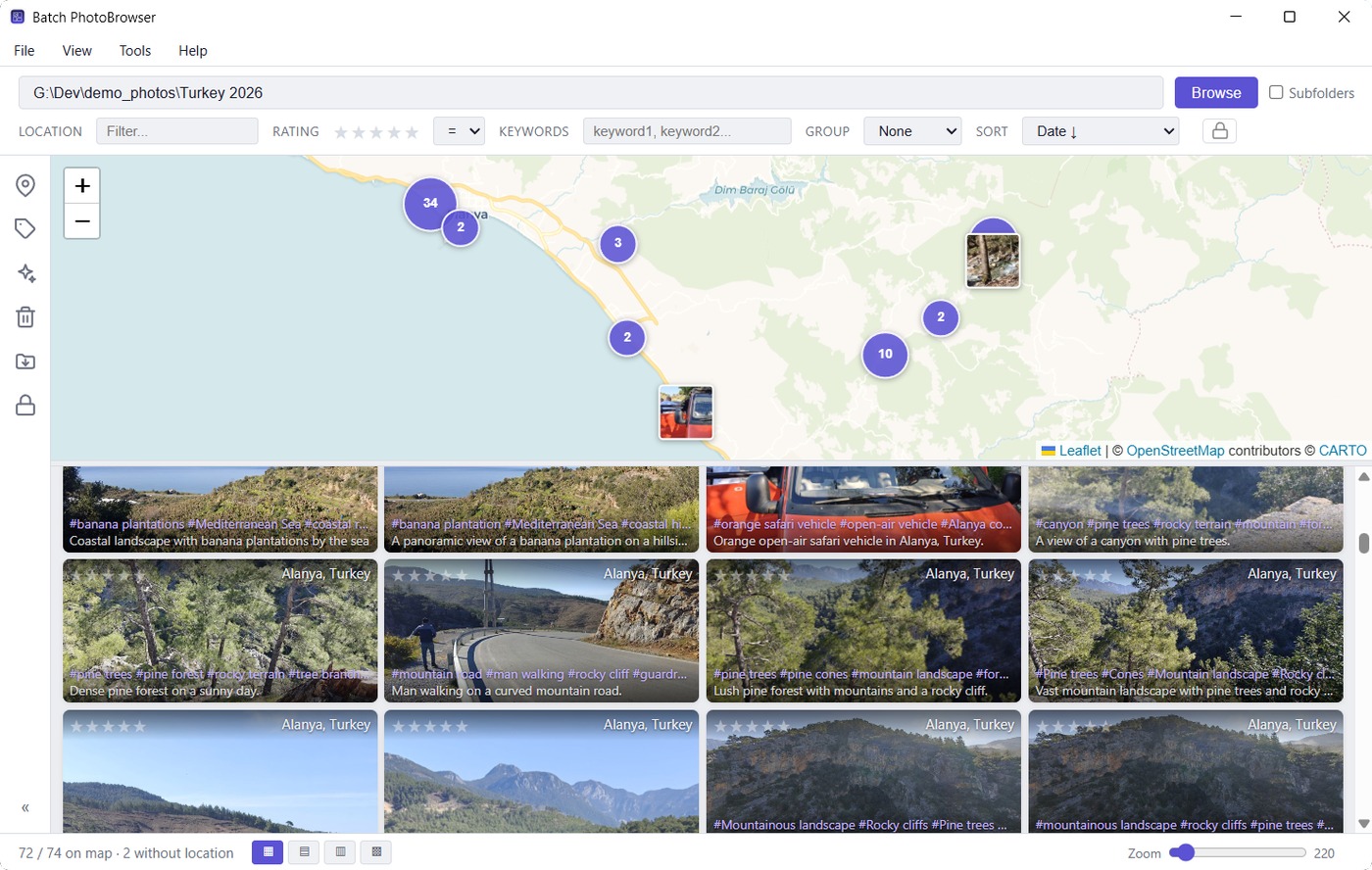
View → Map panel puts a map above the gallery with every photo that has coordinates on it — numbered clusters when zoomed out, the photos themselves when you zoom in. It is the most enjoyable way to look at a large collection: zoomed out, years of travelling are on one screen; zoom into a street you half remember and the photographs are there.
The important part is that the map is a way of choosing photos. The gallery below shows exactly what is inside the map's current view, so panning and zooming narrows down what you are looking at, and everything else keeps working on that selection: layouts, sorting, grouping, ratings, the painters, full-screen viewing. Drag the divider to give either half more room.
The count underneath says where every photo went — how many are on the map, how many have no location at all, and how many could not be read. That last number is worth noticing: those are damaged files, and Batch PhotoFixer may be able to repair them.
The map imagery comes from the internet; if it cannot be reached you get a plain background with your photos still correctly positioned on it, rather than an empty window. Photos you have marked private are not on the map while they are hidden, and neither is any trace of where they were taken.
Editing many photos at once
The strip of icons down the left side holds five tools. Click one, click the photos you want, then Apply. You can also drag a tool onto a photo to load that photo's data into it as a template — drag the location tool onto a correctly tagged photo, then click the untagged ones.
- Location — write country, state, city, sublocation and place onto the selected photos. Pick from your saved places, type it with autocomplete, or search your offline map data. Coordinates are only added to photos that have none.
- Keywords — six slots with autocomplete, either added to what is there or replacing it.
- Recycle — to the Recycle Bin, after a confirmation showing thumbnails of what is about to go.
- Move to Destination — file photos into folders built from their own year, country and city. Nothing moves until you approve a preview, which groups them as "42 photos → D:\Photos\2025 Italy" rather than listing file names, and says whether each folder already exists. In the preview you can drop a row with ✕ and undo it, copy one row's folder onto another, or pick a different folder entirely. Photos with too little information to file are listed separately and stay put. A photo is never overwritten: if the name is already taken at the destination, that one photo is left alone and reported.
- AI Analyze — describe the selected photos now, in the background, with a running count and a Stop button; or add them to the analysis list for Batch Geolocate. Photos that already have AI results wear a small green badge and are skipped by default.
The analysis list
When you want Batch Geolocate to work on a handful of photos from various folders rather than a whole folder, select them and use Tools → Add selected to analysis list. Tools → Analysis list… shows what is queued and opens Batch Geolocate on exactly those photos; Batch Geolocate has the same queue under File → Process analysis list….
One photo, full screen
Click any thumbnail.
- Zoom with the wheel, up to ten times. Whatever is under the pointer stays under the pointer, so you can put it on a face and turn the wheel. Drag to pan, double-click to toggle between the whole photo and three times, and zooming back out always returns to the whole photo.
- The panel on the left holds every field — rating, place, country, state, city, sublocation, keywords and description — and they are all editable. Save changes writes them to the file.
- Get location looks this photo's coordinates up now. Get AI analysis describes it now. Skip AI marks it to be left out of future AI runs.
- Space hides the panel for an uninterrupted look; Esc closes.
- Right-click for copy path, show in Explorer, open elsewhere, rotate left or right, send to Amazon Photos, or move to the Recycle Bin. Rotating a JPEG, TIFF or HEIC does not re-encode the image, so it costs no quality however many times you do it.
Private photos
The padlock in the toolbar marks a photo private. Private photos are hidden by default, left off the map, and never offered to the streamer or to a TV unless you unlock them with the password set in Settings → Private images. It is what lets you hand your phone or a slideshow to a relative without editing your library first.
Duplicates
Identical copies are looked for quietly in the background, so Tools → Duplicates… opens with the answer already worked out rather than starting a scan. Two photos count as duplicates only when the files are byte for byte identical, so there are no false matches — and equally, a copy you rated or captioned is no longer identical, so it is not one.
Which copy is safe to delete depends on where the copies live, which is why the image sources you list in Settings each have a type. A trusted folder is one you organised yourself, where the filing is itself information worth keeping. An unsorted folder is a dumping ground — a cloud folder, camera imports, an old backup. Sets are grouped by that:
| Where the copies are | What you are offered |
|---|---|
| All within unsorted folders | Clear the lot in one go; one copy is kept |
| Strays, with a copy in a trusted folder | Clear the strays in one go; the trusted copy stays |
| Two copies, both in trusted folders | No bulk delete — nothing can tell which filing is the right one, so you choose per set |
| Nowhere trusted | No bulk delete, because no copy is guaranteed to be a good one |
Opening a category lists each set with every copy's full path and a tick box, and the panel on the right shows the photo together with the rating, caption, keywords and location stored in each copy side by side, so you can see which one carries work worth keeping. The copy the program would keep is marked best copy.
Merge metadata, on by default, copies anything held only by the copies you are about to delete — a rating, a caption, keywords, a location, a private marking — onto the copy that stays, before anything is removed. Keywords from every copy are combined; fields the survivor already has are left alone.
Sets that are held back
If a copy outside your trusted folders carries a rating, caption or keywords that the trusted copy lacks, that set is kept out of bulk deletes and flagged for you, because deleting purely by location would throw that work away. At least one copy of every photo is always kept whatever you tick, and everything goes to the Recycle Bin.
Showing photos to other people
Onto the phone in your hand or the TV in the room, over your own Wi-Fi, without uploading anything anywhere.
Web streamer
- In Batch PhotoBrowser, open the folder you want to show.
- Choose Tools → Web streamer…
- Decide what to share: this folder only (the default), and optionally a minimum star rating, keywords, a location, and whether to include private photos — which needs the private password. Press Start streaming.
- A dialog shows a QR code, a web address and a PIN. Scan the code with the phone, or type the address and the PIN.
- Tap a photo to see it full screen or a video to play it; the Folders button moves between folders; Play starts a full-screen slideshow where photos advance on their own and videos play to the end.
- Stop streaming when you are done. It also stops when you close Batch PhotoBrowser.
Only photos already in your library are ever visible — if a folder has never been browsed, it is not there. HEIC and RAW files are converted as they are sent so that any browser can show them, and videos can be scrubbed.
This is for your home network
While streaming, anything on your local network that knows the address and the PIN can see the photos you shared. Nothing is exposed to the internet and nothing can be changed or deleted through it, but do not do this on a café or hotel network. Windows may ask you to allow the connection through the firewall the first time.
Cast to TV
Where the streamer lets a device come and fetch, Tools → Cast to TV… pushes to a Chromecast — and it casts the view you are looking at, filtered and sorted exactly as you left it. Pick the device, choose whether to run a slideshow and how many seconds each photo gets, optionally loop or shuffle, and press Cast. Photos are converted to JPEG for compatibility; videos have to be in a format the TV understands, and H.264 MP4 is the safe one.
Amazon Photos
With an Amazon account connected in Settings → Sharing & streaming, the viewer's right-click menu can send a photo to Amazon Photos and put it in one of your albums — useful for an Echo Show. Which album is up to you: sending offers the albums your Amazon account actually has, with the one from Settings ready to go. If Amazon already holds that photo it is added to the album without a second copy being uploaded. The upload runs in the background, so you can carry on looking through your photos, and it tells you which album the photos went to when it is done.
Under Settings → Sharing & streaming the album is chosen from the same list, and New album… makes one without leaving the window. The first row is All albums, and the choice between it and a named album is the whole setting: pick an album and it is the only one the program uses — photos go there without being asked which, and the cloud mark on a photo means “this is in that album”. Leave it on All albums and you pick the album each time you send, with the cloud mark meaning “Amazon has this somewhere”. Pick one album if your Amazon library is large — asking about a whole account stops working somewhere past ten thousand photos.
The copy that goes to Amazon carries a small caption in its bottom right corner — the date, the country and city, the place and the description, each line only when there is something to say. It is sized to be read on an Echo Show from across the room rather than on the monitor it was made on. The photo on this computer is never touched, and both the caption and the bringing of older uploads up to date can be switched off under Sharing.
View → Show Images in Amazon Photos fills the gallery with your own copies of what is already up there, gathered from anywhere in your collection rather than just the open folder. The line underneath tells you how many were found, how many are in Amazon Photos with no copy on this computer — worth knowing, since those exist in one place only — and how many could not be pinned down because several of your files share a name. Photos are matched by file name on purpose: matching by content would make your own edits look as though a photo had left the cloud.
Poor-quality photos
Batch PhotoRater finds the ones not worth keeping.
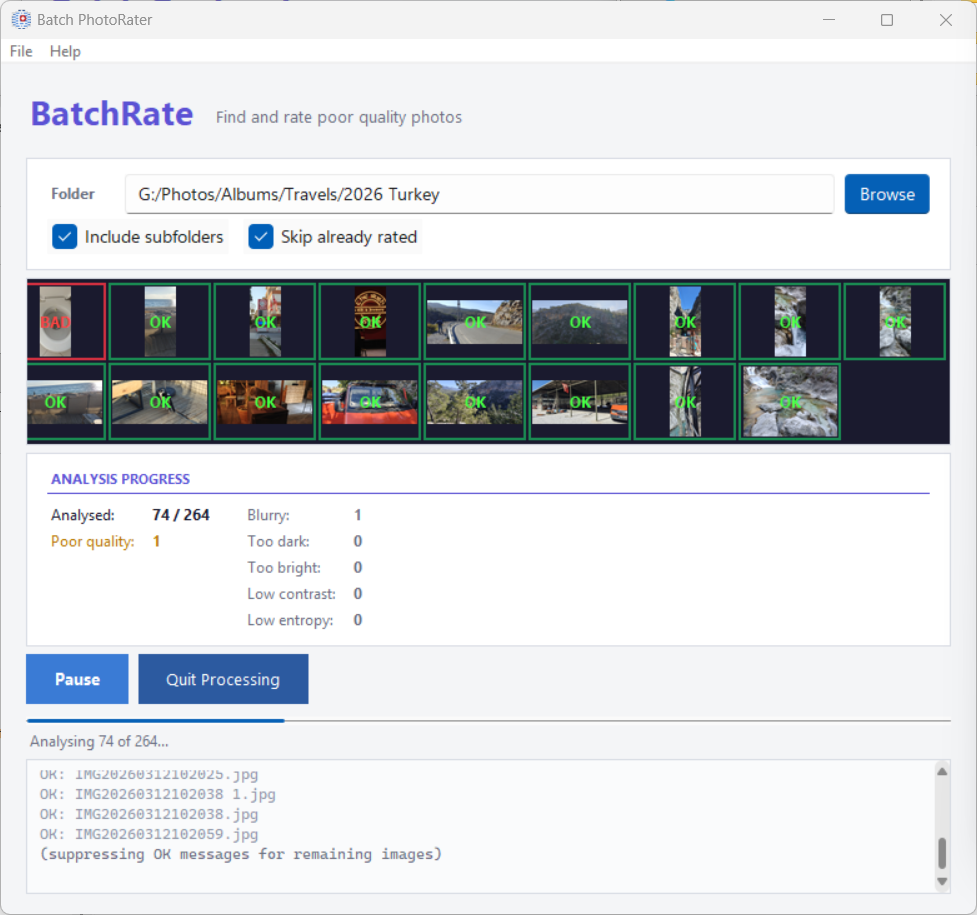
Five measurements, each with a threshold you can move: blurry, too dark, too bright, low contrast and low entropy — the last meaning an image with almost nothing in it, like a photo of a wall or of a lens cap.
Then choose what happens to what it finds: review each one with a rating dialog, rate them all one star, or move them to the Recycle Bin. Skip already rated leaves alone anything you have judged before, so a second run does not ask twice.
Rating them one star rather than deleting is usually the better move: they stay in the library, out of the way of any rating filter, and you can decide later.
Damaged files
Batch PhotoFixer rescues JPEGs that will not open.
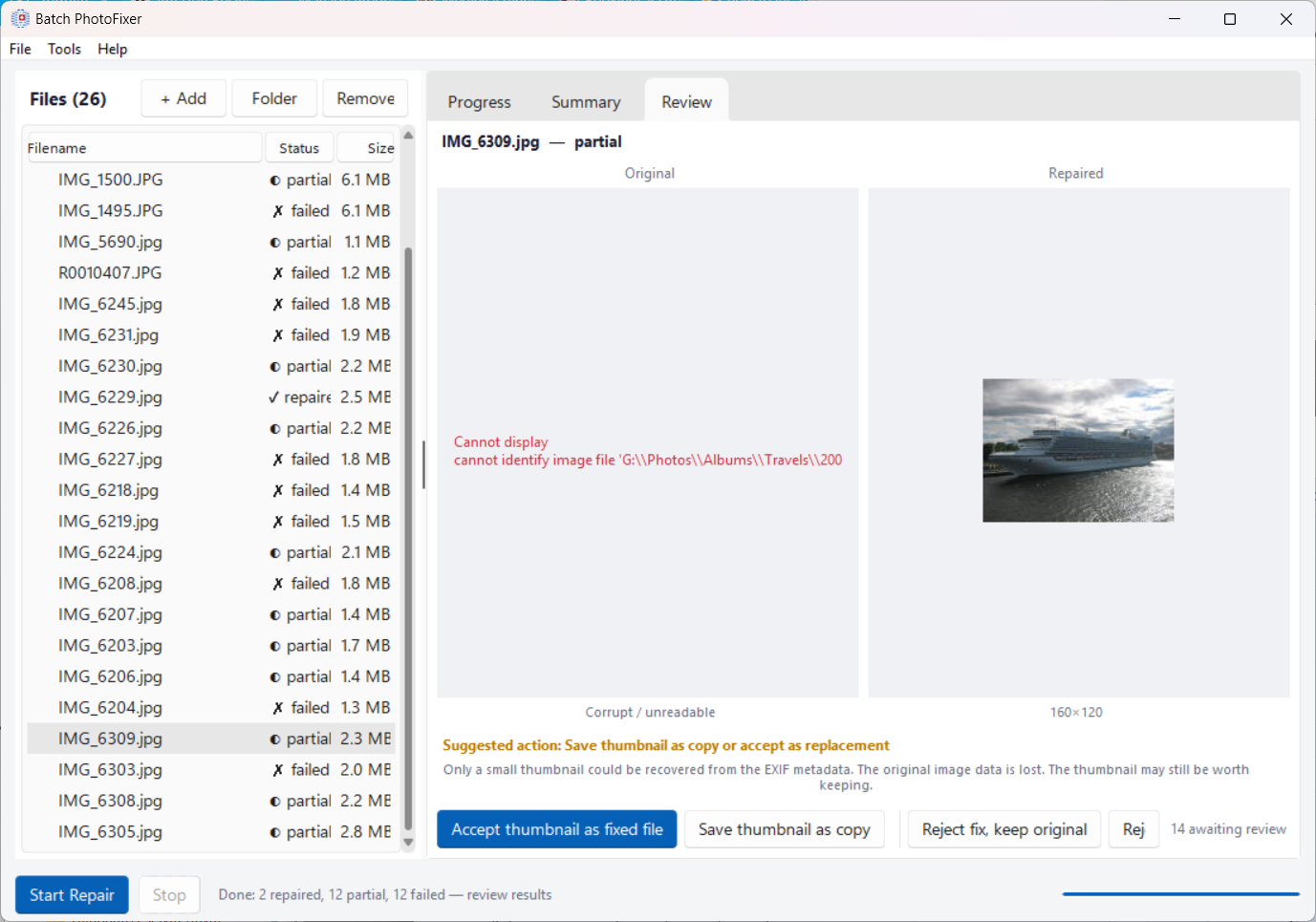
Photos get damaged by interrupted copies, failing memory cards, bad sectors and sync accidents. PhotoFixer works through six stages, each more aggressive than the last, and stops as soon as the file opens: it rebuilds the file's structure, restores the tables a JPEG needs in order to be decoded at all, repairs the frame headers, decodes as much as survives and fills in the rest, extracts the small preview image the camera embedded, and finally attempts bit-level recovery.
Every result goes to the Review tab as original beside repair, and nothing happens to your file until you choose: accept the repair, save it as a copy and keep the original, accept just the recovered preview when that is all there was, reject, or bin the original.
Batch PhotoBrowser also watches for damaged files as you browse and collects them under View → Possibly corrupt files, which can hand a selection straight to PhotoFixer.
Metadata between programs
Batch MetadataSync makes different photo applications agree.
Most people never need the first tab. Photo metadata exists in two standards, IPTC and XMP, and Batch Geolocate always writes both. Other programs do not: some write only one, and then a caption you added in one application is invisible in another. This tab copies between them, in whichever direction you choose as master.
Write filesystem date to replace faulty date deals with cameras and phones that never set a date inside the file, which makes those photos sort and group in the wrong place or show a year like 0000. It fills the date in from the file's own timestamp, choosing the earlier of created and modified, because copying or editing a file only ever pushes those forward. Only files whose date is missing or broken are touched, timestamps before 1990 are ignored as obviously wrong, and a file with no usable timestamp is left alone rather than given a bad guess. Videos are not re-encoded — only the date is added.
Face tags
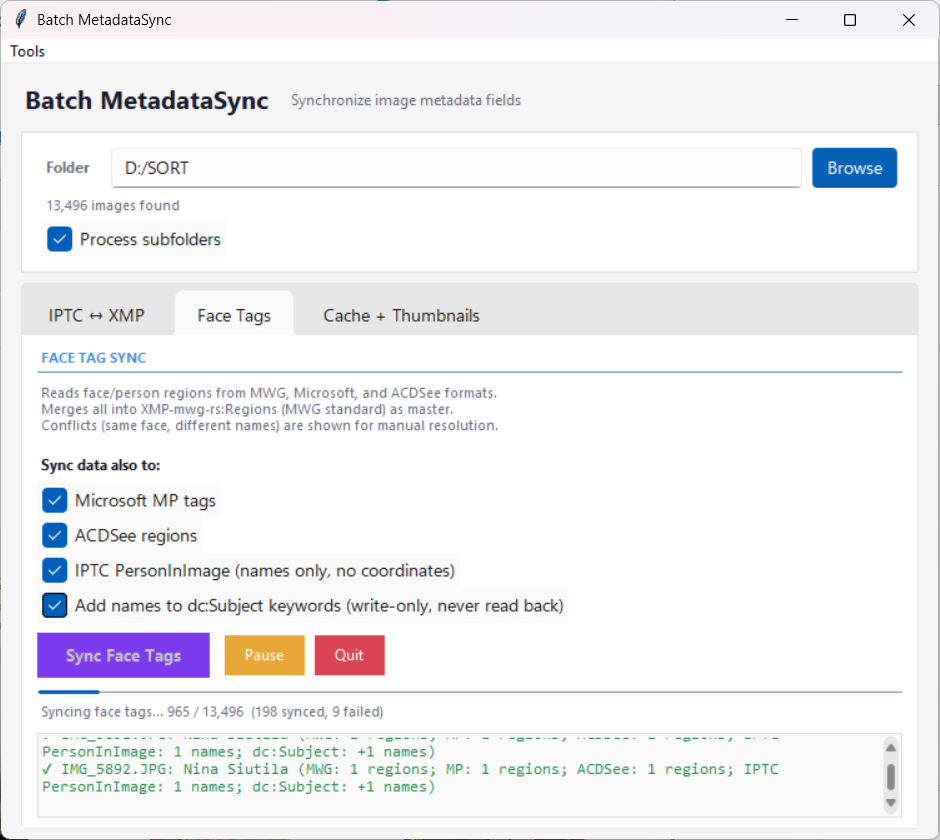
Lightroom, Microsoft's software and ACDSee each store "who is in this photo, and where in the frame" in their own format. This tab reads all three, merges them, and writes back to whichever you select, so the faces you named in one program are the faces another program sees. Where two formats disagree about the same face, it is flagged rather than guessed.
Cache and thumbnails
Reads ahead so Batch PhotoBrowser opens folders instantly: Build cache for everything not yet read, Refresh stale for photos changed since, Cleanup orphans to drop entries for photos that no longer exist. All of it is optional — the browser does this by itself as you go, and the Background Processor does it while you are away. This is for when you would rather front-load the work, before a trip or after importing a few thousand photos.
The background processor
Gets the whole library ready while you are not using the computer.
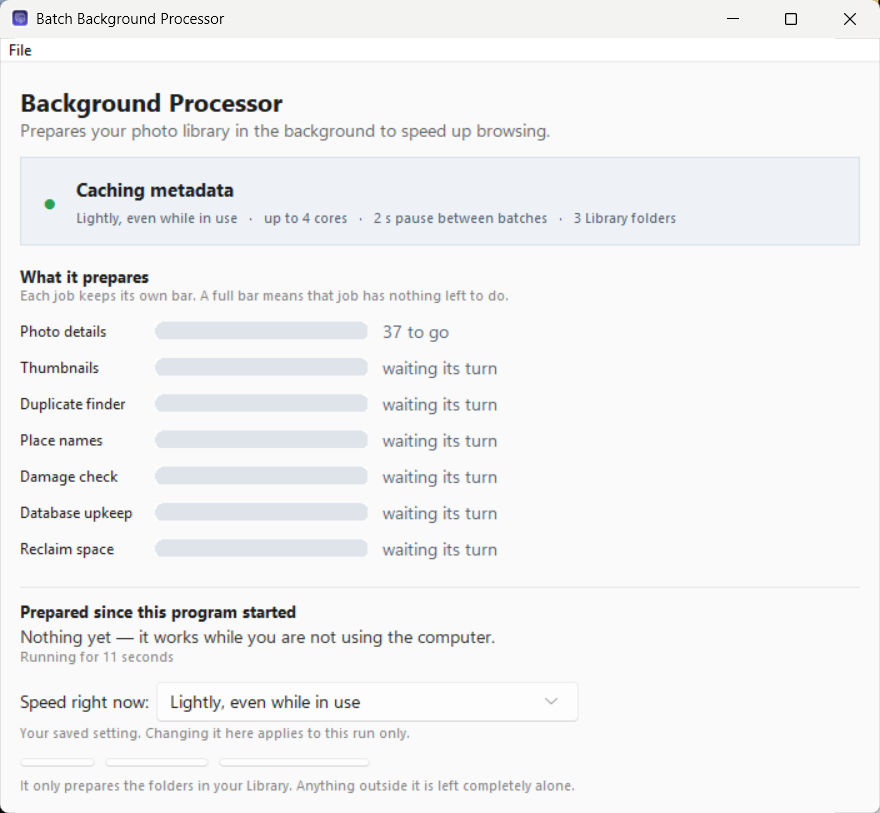
It reads each photo's details, builds thumbnails, fingerprints files for the duplicate finder, fills in place names for photos that have coordinates but no names, checks for damage, keeps the databases tidy and reclaims space. Every job has its own bar: a full bar means that job has nothing left to do, an amber one means it is deliberately waiting and the text beside it says what for.
Nothing depends on it. The other programs do all of this themselves when they need it, so at worst you never notice it is there. It does not change your photo files, and it only ever looks at the folders listed as your image sources.
How hard it works
The choice decides how much of the computer the work may take, not just when it may start:
- Only when the computer is free (the default) — works while you are away and stops within a couple of seconds of your coming back.
- Light — keeps going gently while you work, pausing between batches.
- Fast — takes about half the computer and does not wait for you to be idle.
- Full speed — every processor core at raised priority with the idle checks off. Much quicker, and everything else on the computer is slow while it runs; a laptop will get warm. You are asked to confirm this one before it takes effect.
The speed box at the bottom of its own window changes the setting for this run only, so a one-off hurry never becomes permanent behaviour. The lasting setting is in Settings → Background processing, along with an optional time window (22 to 6 means overnight only) and a daily cap on online lookups if you want one.
Starting with Windows
Under Settings → Background processing, Start with Windows offers three answers: not at all; start at sign-in and work whenever the conditions allow; or start at sign-in but do nothing until you open one of the programs — so a day you never touch your photos is a day it never touches your disk. The installer offers the same choice, unticked.
However it starts, it lives in the notification area beside the clock. Closing its window does not stop it: it keeps working, and clicking the icon brings the window back. Only Exit program, from the icon's right-click menu or the File menu, actually stops the work.
Settings
One window for all seven programs. File → Settings anywhere opens the same thing, and a change made in one is in force in all of them.
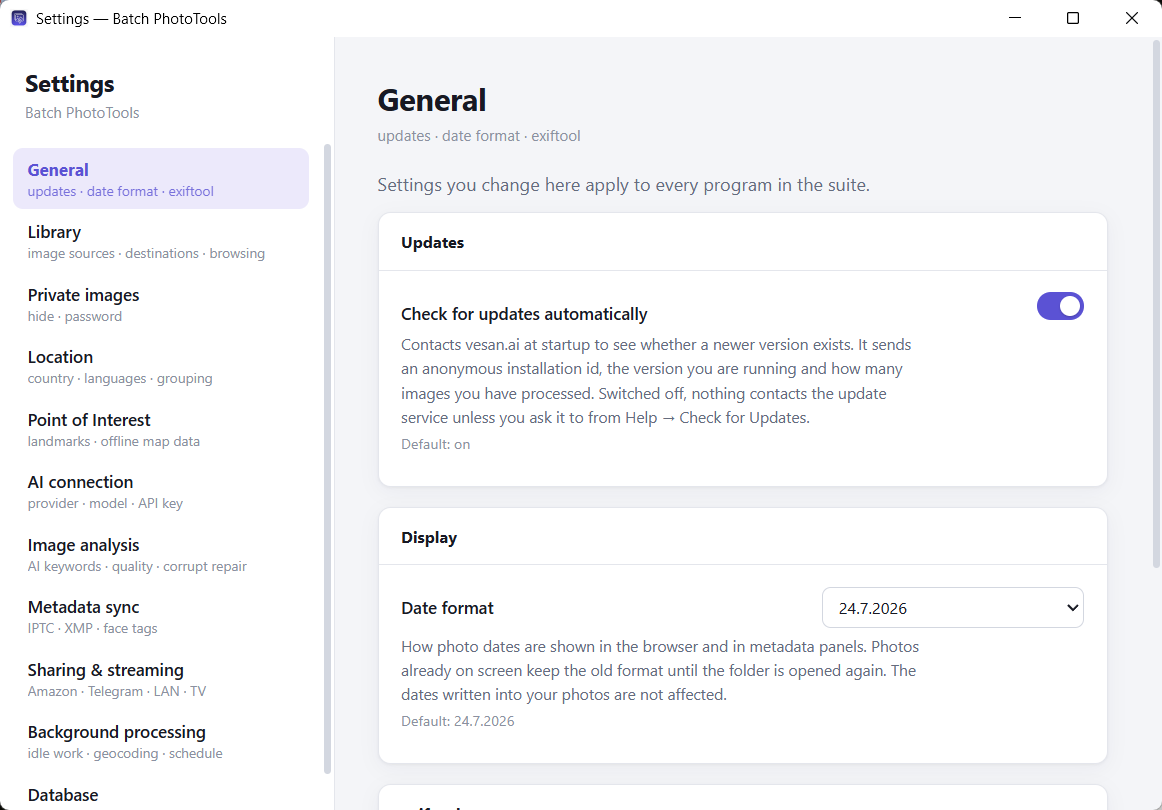
It is arranged by subject rather than by which program owns the answer, so you do not need to know that place-name languages belong to Batch Geolocate and thumbnail workers to Batch MetadataSync. Every setting shows the value it ships with, and if you enter something impossible the window says why and keeps the old value.
| Page | What is on it |
|---|---|
| General | The update check, the date format, and which copy of exiftool writes your metadata. |
| Library | Image sources — the folders that make up your photo library, each marked trusted, unsorted or other. This one list drives the duplicate finder, the background processor and AI locate. Also the Move to Destination targets, and how the browser starts up. |
| Private images | The password that reveals hidden photos, and what marking one does to the file. |
| Location | The language place names come out in, at home and abroad, and how close together photos must be to count as one place. |
| Point of Interest | How places are recognised, your own saved places, and the offline map data. The search distances most people never touch are under advanced. |
| AI connection | Which provider and model, the API key, and a Test connection button that tests exactly what is on screen. Keys are kept per provider, so switching back does not mean typing one again. |
| Image analysis | What the AI is asked to write, how poor-quality photos are found, and how damaged files are detected and repaired. |
| Metadata sync | How closely two face regions must overlap to count as the same person. Raise it if different people in group photos get merged; lower it if the same face tagged by two programs is not recognised. |
| Sharing & streaming | Amazon Photos, Telegram, and what the streamer starts out offering. |
| Background processing | What the computer does with your library while you are not using it, and when it is allowed to. |
| Database | Where your data files are, how big they are, and which of them could be rebuilt if they were lost. |
One job is deliberately not here: downloading offline map data lives in Batch Geolocate under Tools → Offline POI Database, because it is a download with a progress bar rather than a value to set.
What gets written where
For ordinary photos — JPEG, TIFF, PNG — every field is written to both the IPTC and the XMP standard, so that older and newer photo software both find it.
| Field | IPTC | XMP | Filled by |
|---|---|---|---|
| Country | Country-PrimaryLocationName | photoshop:Country | Map lookup |
| State / province | Province-State | photoshop:State | Map lookup |
| City | City | photoshop:City | Map lookup |
| Sublocation | Sub-location | iptcCore:Location | Map lookup |
| Place (POI) | — | iptcExt:LocationShownLocationName | Map data, or you |
| Description | Caption-Abstract | dc:Description | AI, or you |
| Keywords | Keywords | dc:Subject | AI, or you |
| Rating | — | xmp:Rating | You, or AI for poor quality |
| Private mark | — | xmp:Label | You |
Videos and iPhone HEIC photos take the XMP column only. Those file formats have no room for the older IPTC standard at all, so writing it would leave the file looking labelled while carrying nothing. Everything is still in the file, and every program in this suite reads it back, as do Adobe Bridge, Lightroom and other current software.
Windows File Explorer does not show country, state or city
That is a limitation of Explorer rather than a fault here — it has never displayed those IPTC and XMP fields in file properties. The data is correctly written and every photo program sees it. Keywords and ratings do appear in Explorer.
Right-click menu
If you enabled the context menu when installing, right-clicking in Windows Explorer offers Batch PhotoTools — on Windows 11 under Show more options, or by pressing Shift+F10.
| Right-clicking | Offers |
|---|---|
| A folder | Reverse geolocate — opens Batch Geolocate on it |
| AI identify — opens it with the AI pass ticked | |
| Sync IPTC and XMP — opens Batch MetadataSync on it | |
| Open in PhotoBrowser | |
| A photo | Show location data — what this one photo carries |
| Reverse geolocate — does it now, to this photo | |
| AI identify — describes this one photo now |
Keyboard
| Where | Key | Does |
|---|---|---|
| Gallery | F5 | Re-read the folder, keeping your place |
| Full-screen viewer | ← → | Previous / next photo |
| Space | Hide and show the metadata panel | |
| Esc | Close | |
| Ctrl+← / → | Rotate left / right | |
| Del | To the Recycle Bin, after confirming | |
| Place chooser | ← → | Page through this group's photos |
| AI location review | Enter | Approve the proposal |
File types
Photos: JPEG (.jpg, .jpeg), TIFF (.tif, .tiff), PNG, and HEIC/HEIF as produced by iPhones. Reading a location out of a photo needs the coordinates the camera recorded; without them, see Photos with no GPS.
Videos: MP4, MOV, M4V and WebM are catalogued, browsed, played and geolocated alongside your photos, using the fields video files carry. The video itself is never re-encoded, so picture and sound are exactly as they were. AI analysis skips videos, since it describes a single still picture.
If something goes wrong
Processing looks stuck
Look at the bar along the bottom of Batch Geolocate. When a run is genuinely waiting for something it stops showing the server indicators and says what it is waiting for, counting the seconds — reading details from a large group of photos, asking a map service, finishing the last writes. That means it is working. If every indicator is yellow it is waiting out a rate limit and counting down; you can pause and come back later.
The place field stays empty
Usually there is no offline map data for the area and the public servers are refusing requests. Download the region — Tools → Offline POI Database in Batch Geolocate, or the Download region button in the place chooser. It also happens legitimately: an empty stretch of coast has nothing to name, and marking it Save empty POI stops it being asked about again.
The gallery is only showing some of my photos
If the map is open above the gallery, that is what it does — the gallery shows the photos inside the map's view, and photos with no coordinates are never in it. Zoom out, or untick View → Map panel. Otherwise check the filters at the top (location, rating, keywords) and whether private photos are hidden.
Some photos are greyed out after I deleted or moved them
Deliberate: their cards stay in place so the grid does not reshuffle and lose your place while you are working down a page. Press F5 when you are ready.
Opening a folder for the first time is slow
It is reading every photo and building thumbnails; after that the folder opens instantly. You can do that work in advance with Batch MetadataSync's Cache and thumbnails tab, or leave it to the Background Processor.
Two photos look identical but are not listed as duplicates
Duplicate detection compares the actual file contents, so only byte-for-byte identical files count. Adding a rating or a keyword to one copy changes its file and separates the pair, as does any resize, re-save or re-export.
I closed the Background Processor but it is still working
Closing the window hides it to the notification area. Click the icon to bring the window back and use Exit program. To stop it starting by itself, set Start with Windows to No in Settings → Background processing.
Does background work slow the computer down?
Not at the default setting. It runs only while you are away, never on battery unless you allow it, never during a game or a full-screen presentation, and at the lowest processor and disk priority Windows offers. Touch the mouse or keyboard and it stops between photos, never in the middle of writing a file. The higher speed settings deliberately trade that away, which is what they are for.
Can I undo what was written?
No. Metadata is written directly into your photo files and no backup copies are made, which is why existing fields are never overwritten unless you tick the box. Keep backups of your photos.
The program said it was repairing something at startup
If the file that remembers your photos' details is ever damaged — a power cut, a crash or a sync accident can all do it — it is rebuilt automatically, keeping everything still readable and setting the damaged copy aside rather than deleting it. Your photos are unaffected: all of their information lives in the photos themselves. Your saved places get more care still: they are backed up before any change and never discarded without asking you.